USER GUIDE
Otomate user guide
Explore tokens, launch a project, and discover the NFT collections connected to its economy.
Your first steps: buy or sell a token, create a project, or forge a Companion. If an action is blocked, go straight to Troubleshooting.
Start at otomate.fun. You can browse public markets before connecting a wallet. Connect when you want to trade, create a project, or manage your NFTs.
- Choose the network you want to explore in the app: Ink or Robinhood Chain.
- Connect the wallet you want to use.
- Check that your assets are on the network required by your action.
- Keep enough of that network's native asset to pay transaction fees.
The network you browse and your wallet's current network can differ. Review any network-switch request before continuing. Switching networks in the app does not move your assets between chains.
A wallet connection, a signature, a token approval, and a transaction are different requests. An approval lets a contract spend a token; it does not complete your purchase or mint. Read each wallet request before confirming it.
Open a token from the catalog to inspect its market. Verify its network and contract address: names and symbols are not unique.
Discovery sections help you explore different parts of the catalog. Top bonding highlights bonding markets; Near graduation helps you find markets approaching their graduation target. Placement in a discovery section is not an endorsement.
On a token's market page, use the available chart, trades, and holder information to understand its activity. A missing value is not necessarily zero. Holder balances and market activity can update after a transaction has already confirmed.
For broader platform figures, open Analytics from the footer. Check what each metric measures before comparing it with an individual token's figures.
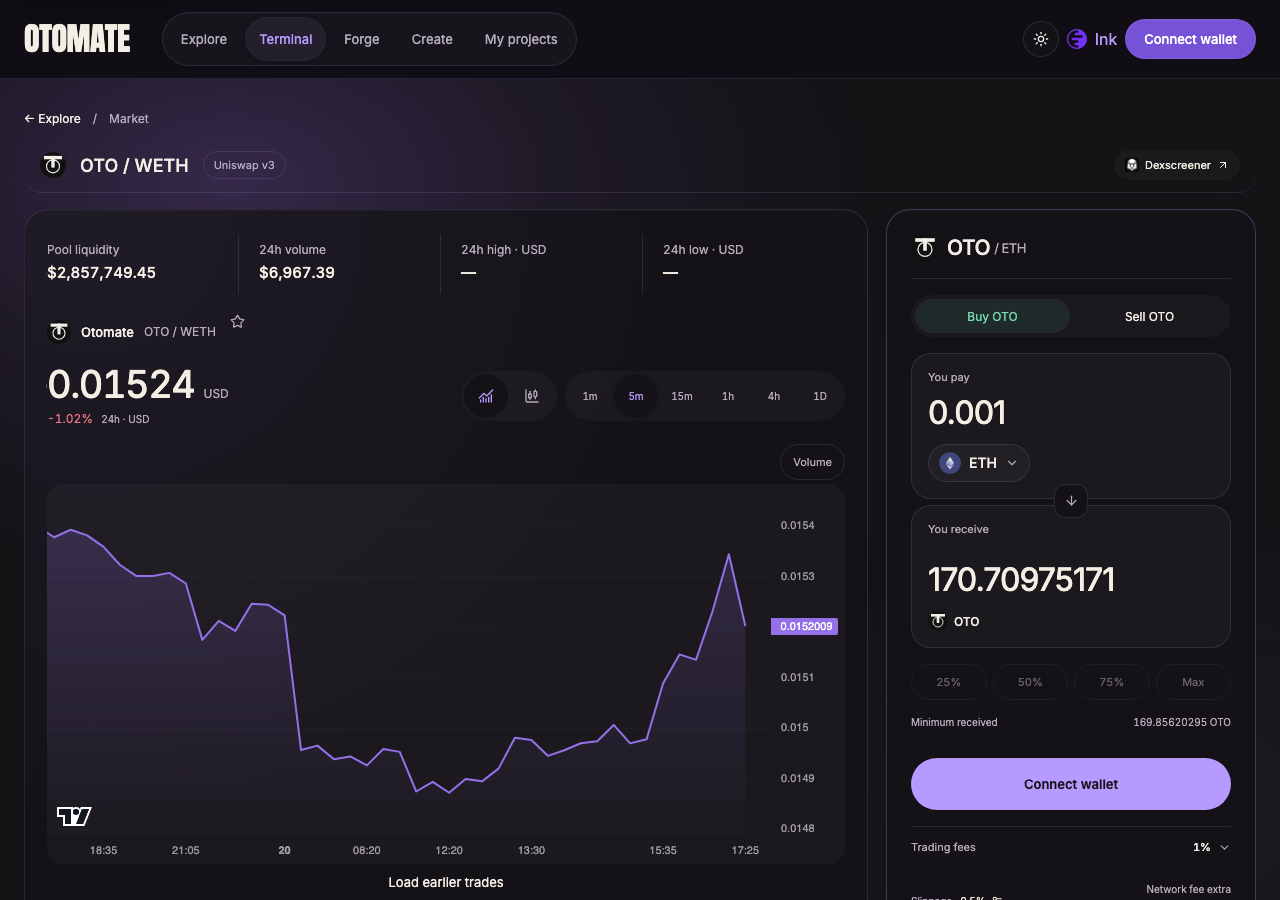
Example: the OTO pool ticket. Prices and amounts in this screenshot are illustrative; use your current quote.
- Open the token's market and choose Buy or Sell. For a sale, connect the wallet holding that exact token on the selected network.
- Enter the amount in You sell (or You pay on the OTO ticket) and check the spending asset. You get (or You receive) is the estimated amount you receive; it is not a second amount to enter.
- Wait for a valid quote. Review the estimated output and any fees or slippage settings shown.
- Connect your wallet if needed and switch to the requested network.
- If an approval is required, review and confirm it first.
- Review the trade transaction in your wallet and confirm it.
- Wait for confirmation before deciding whether to submit another trade.
A quote is an estimate for the current market conditions. Prices can change before execution. Slippage tolerance limits the change accepted by the transaction; it does not guarantee the quoted price.
Keep some native currency for gas rather than committing your entire balance. If no valid quote is available, wait or refresh the quote before proceeding.
If you change the token, network, wallet, or amount, review the new quote. An earlier quote does not apply to the new trade.
For the current Launcher curve flow, a temporary surcharge applies to buys during the first three seconds of chain time after launch. It decreases during that window; buys whose recipient is the project creator are exempt. This surcharge does not apply to curve sells or continue as a pool-trading surcharge after graduation.
Open Trading fees and look for Launch protection. When active, it adds to the base and creator fees, leaving less of the same spending amount to buy tokens. The quote already includes its effect: do not subtract it from You get again. Calculated in quote means the rate is not yet known, not that it is zero.
If you do not want to accept that surcharge, wait until the initial window has passed and review a fresh quote. A network timeout, unavailable quote, or pending transaction is a separate issue; use the troubleshooting steps below. Do not increase slippage to solve a connection problem.
Other markets: the three-second rule describes the Launcher curve flow, not every token or external pool in the app. Review the fees for your selected market.
A bonding curve is the initial market mechanism for a token. Its pricing follows the project's curve as users buy and sell.
Bonding progress indicates progress toward the project's graduation target. It is not a countdown, an expected return, or a promise that graduation will happen.
Graduation is the transition from the curve to a liquidity pool. The market may need time to finish that transition before a new quote is available. Use the market's confirmed state rather than assuming that a progress indicator alone means pool trading is ready.
| Market state | What it means |
|---|---|
| CURVE | The token is in its bonding-curve phase. |
| POOL | The token's market has moved to its pool phase. |
In the current launch flow, an order larger than the remaining curve allocation can be partially filled. Only the amount needed for the remaining allocation is used, and the unused input is refunded by the trade. You receive fewer tokens than a full-size purchase would have bought; the unused amount is not an extra fee. Network fees remain separate.
For example, if you offer 10 units of the curve's payment asset and the fill uses 4, the remaining 6 units are returned. If your payment route converts another asset first, review the route's amounts rather than assuming that the refund is denominated in the asset you originally selected. Check the confirmed transaction and refreshed balances before placing another order.
- Let the existing purchase confirm. Do not submit it again to force graduation.
- Wait for the market to show POOL and obtain a new quote. Trading now uses pool liquidity; the old curve quote is no longer the right price or route.
- Review the new output, fees, and any approval requested by the new route before trading again. An earlier approval may not cover it.
Token trading → graduation → pool trading is separate from collection generation → activation → reveal. A Companion collection can still be preparing artwork while its token is already trading in the pool. Eligible holders may forge sealed NFTs before reveal is available.
Older markets: partial-fill support depends on the market generation. An oversized buy can be rejected on a market without that support; request a smaller fresh quote rather than assuming every purchase will refund a surplus.
Open Create to start your project.
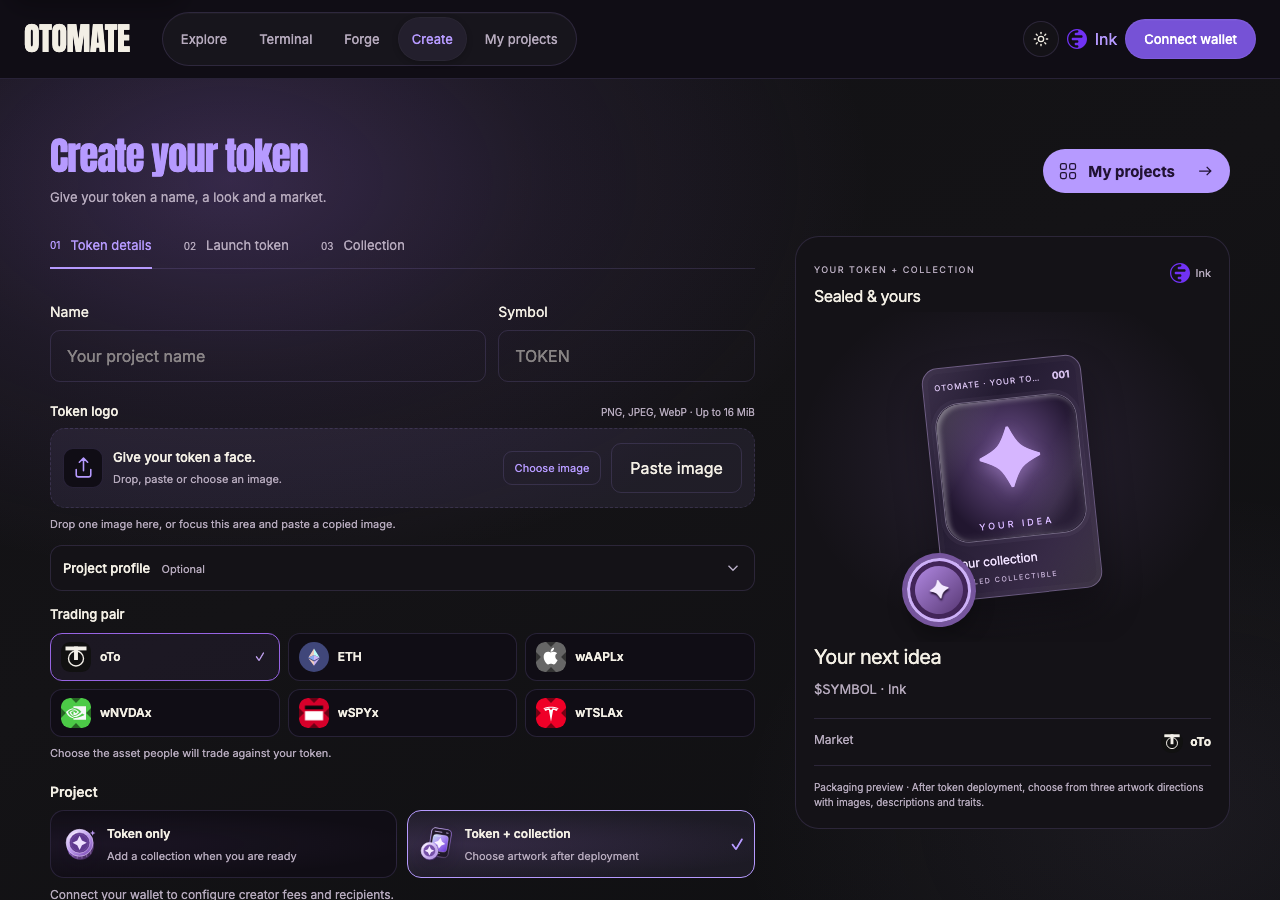
Choose the project type before launch. The Collection stage follows token deployment.
- Enter your token's Name and Symbol.
- Add a token logo and the project presentation fields you want to provide.
- Choose a Trading pair: this is the asset people will trade against your token.
- Review the launch preferences offered for that market, including any initial purchase. Configure your creator fee, receiving wallets, and allocations as explained in Configure project fees.
- Check whether the selected launch includes a collection and when that collection is created.
- Review and save your token details, then complete the launch steps in your wallet.
- Use My projects to return to the saved project and continue any remaining steps.
Treat the final review as your opportunity to check the token identity, market, costs, and collection choice. Do not assume that deployed settings can be changed later.
A saved draft is not a deployed token. Likewise, a deployed token does not mean its collection setup is complete. Follow the project's displayed next step.
Collection options: a token-only project has no Companion collection to prepare. If your launch offers adding a collection later, return through My projects to that option.
For projects that offer a collection, continue into Collection studio from your saved project.
In the standard generated-collection flow, preparing the creative direction and generating the complete collection happen at different times. The full collection is generated after the token graduates, rather than being required before token trading begins.
| Stage | What happens |
|---|---|
| Creative preparation | Choose and finalize the collection direction through the studio, review its preview, and complete the required payment steps. A preview is not the full collection. |
| Token trading | The token trades on its bonding curve. Under the standard flow, full artwork generation waits for verified graduation. |
| Graduation | The token moves to its pool. The collection becomes eligible for generation, provided its creative preparation and required payment are complete. |
| Generation and preparation | The 1,000 artworks are generated, verified, and prepared. Eligible holders can mint sealed NFTs while artwork preparation continues. |
| Collection activation | The complete inventory must be ready and activated before reveal opens. A partly generated collection cannot unlock reveal. |
| Holder reveal | Each holder chooses when to open their sealed NFT. The opening is then processed until its assigned artwork appears. |
Graduation does not mean that all artwork appears immediately. Generation, verification, preparation, and activation take place after eligibility is established. Follow the collection's progress in the studio; there is no guaranteed completion time.
Return through My projects with the same wallet to follow the existing collection. If the studio offers Start generation after graduation, use it once the project is eligible. Do not launch a second project or pay again simply because the collection is waiting for graduation or still processing.
Other collection paths: imported artwork follows its import and verification steps. A project explicitly offering generation after artwork finalization follows that timing instead. The table above describes the standard generated collection.
Review what each paid step covers and its amount before confirming. Payment confirmation, artwork generation, and collection activation are separate stages.
If a payment or generation is still being checked, resume the saved project. Keep the transaction receipt and use the available recovery controls rather than repeating an uncertain payment. A completed token launch does not mean collection preparation has finished.
A Companion is an NFT from a specific project's collection. It is separate from the fungible token you trade.
The global 404 collection, including Genesis and the global Forge, is a different collection. Do not assume that its eligibility, costs, supply, or rewards match a project's Companions.
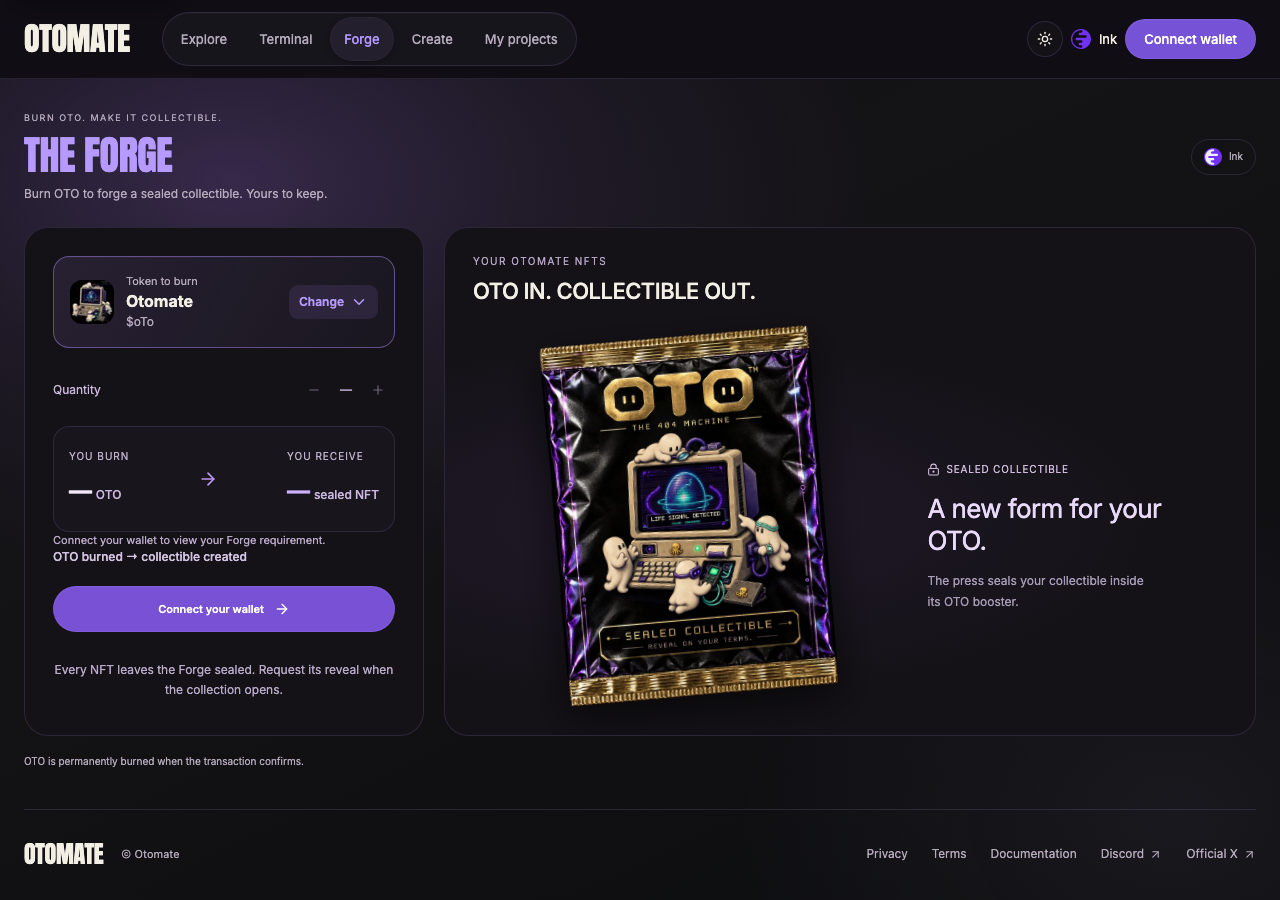
The global 404 Forge is shown here. Use Change to select the intended supported token or collection; check its own burn amount and eligibility.
- Select the intended collection and connect the wallet holding its required tokens.
- Check whether minting is open. On collections that mint during bonding, the sealed mint opens once the collection's artwork style is final and the token's curve reaches 50% of its graduation target, and stays open after graduation. If the curve falls back below 50% before the first NFT is minted, it closes again. Other collections open the mint at graduation. The token page and the Forge show which rule applies.
- Review the token cost and network fee.
- Complete an approval if requested, then review and confirm the mint.
- Wait for the mint receipt and check your NFT inventory.
Forging uses the project's tokens. Under the burn-at-mint mechanism, those tokens are permanently burned: the NFT is not a redeemable deposit. Review the collection's confirmation before proceeding.
NFTs minted while the token is still on its bonding curve share a bonus. NFTs are counted in groups of 20, in mint order. In each group of 20 NFTs minted before graduation, one NFT, picked at random, is guaranteed at least a Relic, up to 9 Relics per collection: if it draws a Genesis, it keeps the Genesis. A last group with fewer than 20 NFTs still has a chance in proportion to its size (10 NFTs → 50%).
What counts is when you mint, not when you reveal. Reveal opens only after graduation, and revealing early or late does not change which NFTs are guaranteed.
Every other NFT, including those minted after graduation, takes part in the normal draw, without the Relics reserved for the bonus: its Relic odds go from 1.8% down to 0.9% when 9 Relics are reserved. The token page shows the current odds. Genesis odds are the same for every NFT.
The draw is provably fair: its seed is committed on-chain before the first reveal, then published, 7 days after the reveal opens at the latest, so anyone can check the result. See Provably fair.
A Sealed NFT has not yet revealed its artwork. When Reveal NFT becomes available, review and confirm the opening request.
Reveal pending means the opening is still being processed. A confirmed opening transaction and the final artwork appearing are separate events. Leave the existing request to complete; do not start another mint to resolve a pending reveal.
If the page says the collection awaits activation, wait for activation. Revealing does not require a second burn of the tokens already used to mint.
Where supported, open Your NFT rewards with the wallet that currently owns the eligible NFTs.
- Select Load rewards or refresh the current information.
- Check the collection, reward asset, and available amount.
- Use the NFT pagination controls if there are more records to inspect. An amount shown for one page is not necessarily the total across all your NFTs.
- Choose Review … claim, inspect the network estimate, and confirm the claim in your wallet.
- Wait for confirmation before making another claim for the same rewards.
Different assets are claimed separately. Companion rewards, global 404 rewards, and historical rewards can appear as separate groups.
In the NFT reward flow described here, unclaimed rewards follow the NFT. Transferring an NFT can therefore transfer the ability to claim its unclaimed rewards. Check rewards before transferring or selling it.
An updating or unavailable reward balance is not proof that you have no rewards. Wait for verification to finish. Rewards depend on the collection's rules and actual accrual; there is no guaranteed payout.
Configure fees during token creation, before the final launch review. The options depend on the selected market and whether the project has a Companion collection or supports attaching one later.
- Select the trading pair so the app can load its verified rates.
- Set Your creator fee. Some project versions label the control Additional creator fee; in that case it is an addition to the standard creator allocation.
- Read Total trading fees, then open View breakdown. The creator fee is already included in this total: do not add it a second time.
- Open Allocation settings and check the Creator wallet.
- Choose how much of the standard and additional creator allocations goes to project buyback. The remainder goes to your creator wallet.
- Review the resulting total and allocations before launching.
Where the creator-fee control supports zero, selecting zero removes the creator trading fee, not all protocol fees. Launch protection, when active, is shown separately in the trade quote.
Depending on the project, the breakdown can include:
| Allocation | Purpose |
|---|---|
| Creator allocation | The creator's share, with its configured wallet and project-buyback split. |
| Otomate treasury | The protocol treasury allocation. |
| Companion NFT rewards | Rewards allocated to the project's eligible Companion NFTs. |
| Project token buyback + burn | Funds allocated to buying and burning the project's token. |
| $OTO buyback + burn | Funds allocated to buying and burning $OTO. |
| Global NFT rewards | The allocation for eligible global NFTs, separate from local Companions. |
The creation controls configure your creator share; they do not let you freely rewrite every protocol allocation. Buyback settings are available only for supported pairs. Allocating funds to buyback does not mean a buyback executes immediately with each trade.
A fee rate and a share of that fee are different percentages. For example, if a hypothetical creator allocation is 1% of a 100-unit trade, it receives 1 unit. Sending 25% of that allocation to buyback assigns 0.25 units to buyback and 0.75 units to the creator wallet. It does not charge another 25% on the trade. This example illustrates allocation math, not an actual project rate.
If the project includes a collection or supports adding one, review NFT resale royalties or Royalties after adding a collection.
In Allocation settings:
- Check Royalty wallet, which can differ from the creator trading-fee wallet.
- Where available, choose whether to Receive creator royalties.
- Split your creator royalty allocation between Wallet (%), Project buyback (%), and Companion NFTs (%).
- Make those three shares total 100%. They divide your creator royalty allocation, not the entire NFT sale price.
A royalty-buyback option can be unavailable even if other allocation options are present. Use only the options supported by the selected pair. Royalties concern NFT resales; they are separate from token trading fees, mint token costs, and gas.
Review the amounts shown for the specific project and action before signing.
| Cost | When to check it |
|---|---|
| Network fee, or gas | In your wallet before an on-chain approval, trade, launch, mint, opening, or claim. |
| Trading fees | In the market's quote and fee information. Rules can differ by project and market phase. |
| Creation or artwork costs | In the launch or collection payment review, before approving payment. |
| Forge token cost | In the selected collection's mint review; burned tokens are distinct from gas. |
Token approvals can require their own network transaction. A transaction that reverts can still consume gas. A successfully paid artwork or creation step should not be assumed refundable unless its stated terms provide that option.
This guide does not prescribe one platform-wide trading rate or copy historical mint prices into current project instructions.
First check whether your wallet has submitted a transaction. If there is a transaction hash, inspect that transaction and use Check status. If the wallet result is uncertain, recover it before submitting anything else. Refreshing a quote does not cancel a transaction already submitted.
On Robinhood Chain, the messages below that name Ink name Robinhood Chain instead.
| Message or situation | What it means and what to do | When to retry or ask for help |
|---|---|---|
| Wrong network | Switch your wallet to the market's network. Switching networks does not bridge your assets. | Retry after the wallet shows the requested network. |
| Insufficient balance. | Check the asset in You sell, the selected wallet, and native currency for gas. Reduce the amount or fund that wallet on the correct network. | Retry once the balance is available. If balances cannot load, use Retry balances; an unavailable balance is not zero. |
| Refresh required, Market price expired. Review again., or Quote expired during wallet verification. Review a fresh quote. | The previous price is no longer valid. Request and review a fresh quote, including output and fees. | Retry with the new quote. If every review expires before you can confirm, contact support with the exact message. |
| Unable to reach Ink. Please try again shortly. | The app could not reach its chain reads. Check your connection; keep the current token and amount. | Retry once the connection returns. If the same error persists after a fresh attempt, contact support. |
| Ink is busy. Please try again shortly. | Chain reads are temporarily rate-limited. Let the ongoing request settle; do not repeatedly reload or open more quote requests. | Retry shortly after the current attempt finishes. Contact support if the same message persists. |
| Ink is taking too long to respond. Please try again shortly. | Chain verification timed out; this is not a launch-protection fee. | Allow the current attempt to finish, then retry. Avoid repeated rapid clicks. Report a recurring timeout. |
| Trade verification is unavailable. or no valid quote | The app cannot currently verify a usable trade. Check the market phase and retry the quote. Do not sign using an old estimate. | If it remains unavailable after refreshing the market, contact support; increasing slippage will not restore verification. |
| Approval confirmed, purchase or sale unfinished | The approval only authorized spending. Return to the ticket and review the separate trade request. | Continue once the approval is confirmed and the new trade quote is valid. Do not send another approval just because no purchase appears. |
| Signature declined. Review a fresh quote to retry. | The wallet request was declined before submission. | If you still want the trade, review a fresh quote and accept the new wallet request. |
| Trade changed. Review again. | The wallet, token, direction, network, or amount no longer matches the reviewed trade. | Check the intended inputs and review again. |
| Wallet result is unconfirmed. Recover the transaction hash before continuing. or Recover the pending transaction first. | The outcome is uncertain. Find the hash in wallet activity and use the ticket's recovery controls and Check status. | Do not resubmit while uncertain. Contact support if you cannot identify the transaction or recovery stays blocked. |
| Transaction reverted | The submitted transaction failed; gas may still have been spent. Open View transaction and keep the hash and error. | Review a new quote only after the failure is confirmed. If the same failure recurs, contact support instead of repeatedly paying gas. |
| A purchase minimum is shown | Open Trade details and compare Exact purchase minimum with Amount after conversion, where shown. | Adjust the amount only if you accept the resulting spend, then obtain a fresh quote. |
| Situation | What to do |
|---|---|
| Token launched, collection unfinished | Return to My projects and continue the saved collection stage. Do not create or pay for another project to resume this one. |
| NFT minted but not yet listed | Check the mint receipt, then refresh the inventory and inspect additional NFT pages. Contact support if the confirmed NFT remains absent. |
| Reveal pending | Follow the existing opening request. Do not mint another NFT or submit another opening to recover it. If processing remains blocked, send support the opening hash and collection address. |
| Rewards unavailable or updating | Wait and refresh; do not interpret an unavailable balance as zero. |
For support, use the official Discord linked from the app. Include the page URL, network, public wallet address if relevant, transaction hash, and exact error. Never share a seed phrase or private key.
| Term | Meaning |
|---|---|
| Token | A fungible asset identified by its network and contract address. |
| Trading pair | The two assets exchanged in a market. |
| Quote | An estimate of the result of a particular trade. |
| Slippage | The difference between the expected price and the execution price. |
| Bonding curve | The pricing mechanism used during a token's initial market phase. |
| Graduation | The transition from the bonding curve to a liquidity pool. |
| Liquidity pool | Assets held by a market contract to support exchanges. |
| Companion | A project-specific NFT, separate from the project's fungible token. |
| Forge | The flow for minting an NFT using the required tokens. |
| Burn | Permanent removal of tokens from circulation. |
| Reveal | The process that makes an NFT's assigned artwork visible. |
| Claim | An on-chain request to collect available rewards. |
| Gas | The network fee paid to process an on-chain transaction. |